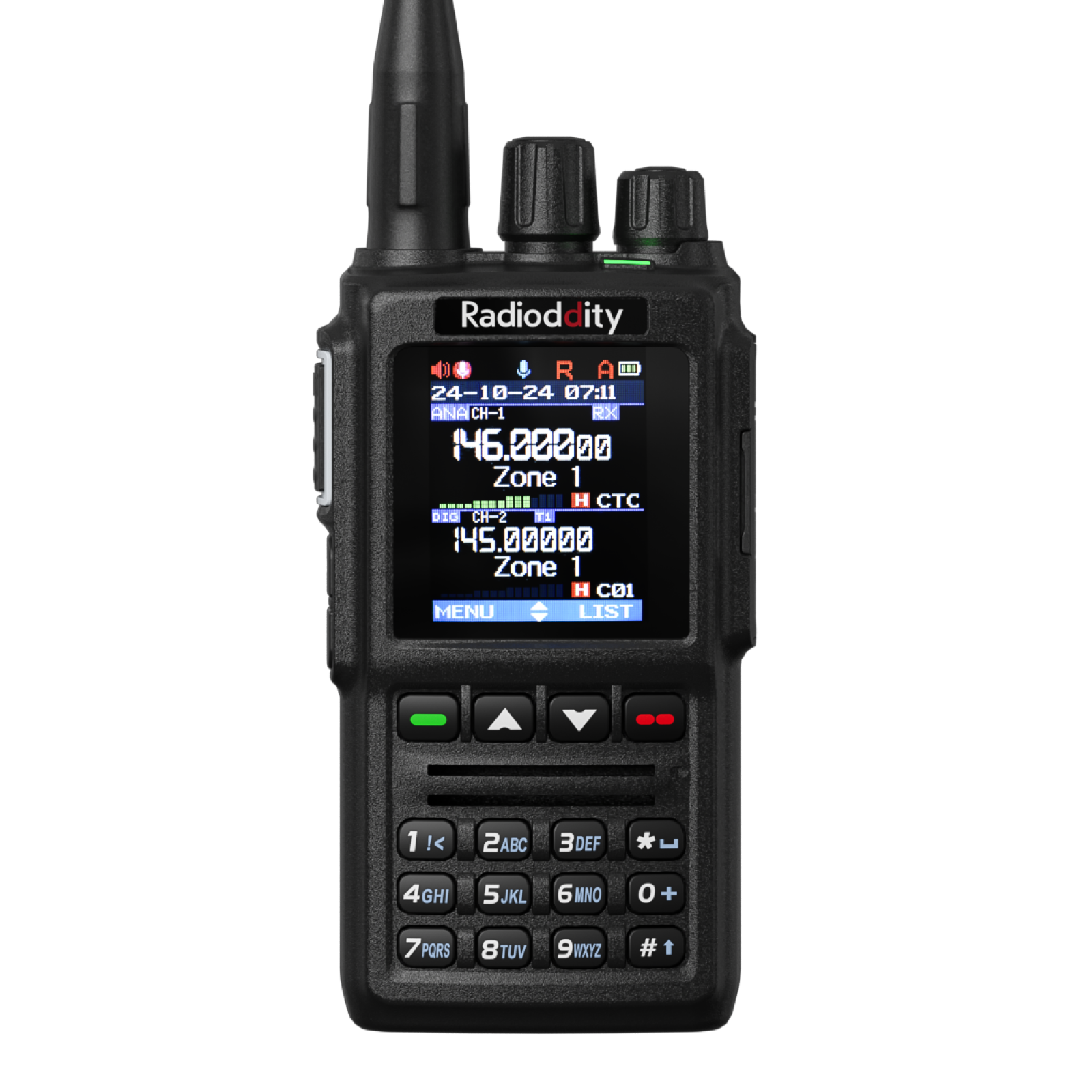
Programming a radio can mean entering one local repeater from the keypad, loading hundreds of memories from a computer, or building a digital codeplug with talkgroups and zones. The goal is the same: turn a collection of settings into channels you can actually use.
The challenge is that there is no universal procedure. Yaesu, Icom, Kenwood, Baofeng, TIDRADIO, AnyTone, and other manufacturers take different approaches—and two radios from the same brand may need different software, cables, and transfer steps.
1. Programming from the keypad or front panel
Manual programming is a useful skill even if you normally use a computer. It lets you add a frequency in the field without finding a cable or opening an app. On a typical analog FM radio, you enter the receive frequency, choose the repeater shift and offset or transmit frequency, set the required transmit CTCSS tone or DCS code, and store the result in memory.
Difficulty: moderate for one channel; tedious for a large list. The stumbling blocks are menu names, the difference between VFO and memory mode, and the exact sequence used to save a channel. A receive tone is a separate choice: enabling tone squelch unnecessarily can hide signals you otherwise would hear. Follow the manual for the exact model rather than assuming another radio’s button sequence will work.
2. Computer programming through a cable
A computer turns channel programming into something closer to editing a spreadsheet. You can organize names, frequencies, tones, scan settings, and memory banks on a larger screen. For a mobile radio with channels grouped by travel route or a handheld with several clubs’ repeaters, this can save considerable time.
Difficulty: usually moderate during setup, then easier for bulk changes. Common obstacles include selecting the wrong COM port, missing USB drivers, a charge-only USB cable, or a programming plug that is not fully seated. A connector that fits does not establish electrical compatibility. Some radios require a special cloning mode and a precise transfer sequence.
3. Choosing software: brands and practical options
| Brand or family | Software options to investigate | Main difficulty |
|---|---|---|
| Yaesu | Model-specific Yaesu software where offered; RT Systems; CHIRP for explicitly supported models. For example, the FT-70DR has Yaesu ADMS-10 and RT Systems ADMS-70D options. | Choosing the exact package and following the radio’s cloning sequence. |
| Icom | Model-specific Icom CS software, such as CS-52 for the appropriate ID-52 models; RT Systems or CHIRP where supported. | Matching the model and connection method, then understanding digital repeater and routing settings. |
| Kenwood | Kenwood memory-control programs, including MCP-D74 for the TH-D74; third-party options for supported models. | USB setup and managing memories alongside D-STAR or APRS settings. |
| Baofeng | CHIRP for listed models; model-specific manufacturer or supplier software. | Similar product names and cases can conceal different hardware. Confirm the exact variant. |
| TIDRADIO | Odmaster on supported radios; model-specific CPS; CHIRP where the exact model is supported. | Choosing the correct model/version and connecting through the intended Bluetooth workflow. |
| AnyTone DMR | Model-specific CPS from the manufacturer’s download resources. | Matching software and firmware requirements and building a usable digital codeplug. |
| Other brands, including Radioddity, Retevis, Alinco, and Wouxun | Start with the exact model’s official download page, then check CHIRP and RT Systems compatibility listings. | Brand-wide assumptions are unreliable; support must be checked model by model. |
CHIRP is a free, open-source option for many supported radios, with Windows, macOS, and Linux versions. It does not support every radio or every feature. RT Systems offers paid, model-specific programmers; check the product page for operating-system and cable requirements before buying. Manufacturer software can be the most direct route to a model’s particular settings, although its interface and operating-system support vary.
4. Bluetooth and phone apps
Wireless programming can be convenient when you want to update a radio without taking out a laptop. TIDRADIO’s documentation, for example, describes reading, editing, and writing a supported TD-H3 Plus through the Odmaster mobile app or web interface. Other radios may require a compatible external Bluetooth programmer rather than having programming Bluetooth built in.
Difficulty: easy to moderate when compatibility is established. Bluetooth audio and Bluetooth programming are different capabilities. A radio that works with a wireless headset may still require a cable for programming. Phone permissions, the selected radio version, and connecting within the correct app can all affect success. Apps such as OLA and Odmaster should not be treated as interchangeable; use the app specified for the radio or adapter.
5. SD cards and radio-to-radio cloning
Some radios support saving settings to an SD or microSD card. Icom’s CS-52 documentation includes a microSD programming-data workflow, and Kenwood documents backup and repeater-list functions for the TH-D74. Where supported, a card can provide a convenient backup or transfer method without keeping the radio connected to the computer.
Difficulty: low to moderate. Card format, folder location, file type, and the radio’s import procedure matter. Follow the model’s instructions for preparing the card. A settings backup, a repeater-list file, and a firmware update are different things.
Radio-to-radio cloning is another option on models that support it, using the specified cable or wireless procedure. It is useful for compatible radios, but cloning is not a universal way to move settings between brands. It can also copy more than the channels you intended.
6. Digital programming: where the learning curve grows
Analog FM normally revolves around frequencies, shift, tones, and channel names. Digital modes add another layer.
- DMR: A codeplug—the radio’s configuration—can include channels, contacts, talkgroups, zones, color codes, time slots, and your radio ID. A correct frequency alone is not enough.
- D-STAR: Depending on the operating method, callsign, repeater, gateway, and destination settings must agree with what you are trying to do.
- Yaesu System Fusion/C4FM: The channel’s operating mode matters. Programming a repeater memory and connecting to a WIRES-X room are separate steps.
Difficulty: moderate to high at first. Begin with one known local repeater and one intended digital destination. Confirm that combination works before expanding it into dozens of channels. A shared codeplug can be a useful starting point, but check model compatibility and replace another operator’s identity settings with your own.
A workflow that prevents most headaches
- Identify the exact model, regional version, and any software/firmware compatibility requirements.
- Read the existing configuration first where supported, and save a dated backup before editing.
- Build a small test group: a simplex channel and a few verified local repeaters.
- Check frequency pairs, tones, modes, names, and digital parameters against the repeater operator’s current information.
- Write the settings using the documented procedure, then inspect the results on the radio.
- Test operation before adding the rest of your list. Hearing a repeater does not prove that your transmit settings are correct.
CHIRP’s beginner guide distinguishes clone-mode radios, which transfer a configuration image, from live-mode radios, where edits can take effect immediately. Know which behavior applies before you start. Also remember that moving channel data between brands does not automatically carry over every bank, menu, or digital setting.
For a handful of channels, front-panel entry may be all you need. For a large travel list, computer software is often worth the setup. For supported equipment, phone apps and memory cards add flexibility. Whatever method you choose, learning to enter one working channel manually—and keeping a good backup—makes the next programming session much less frustrating.
Official references and further reading
- CHIRP beginner guide and downloads and platform requirements
- RT Systems hardware requirements and FT-70D programming options
- Icom CS-52 programming software
- Kenwood amateur-radio software downloads
- TIDRADIO: programming with CPS and Odmaster
- AnyTone software downloads
- BridgeCom Systems: creating a DMR codeplug
Leave a Reply